


Setting up a smart home device in under an hour is completely doable when you follow the right sequence. We’ll walk you through picking compatible hardware, locking in your 2.4 GHz Wi-Fi, configuring the companion app, and integrating everything into your existing smart home network. We also cover the fastest fixes for the most stubborn setup errors. Stick with us and you’ll have your device online, automated, and fully secured before you know it.
What to Buy Before You Start Setup
Before diving into setup, there are three core components you’ll need: a compatible smart home device (such as an Amazon Echo, Google Nest, or Apple HomePod), a stable Wi-Fi connection with at least 2.4 GHz band support, and the device’s companion app installed on your smartphone or tablet.
Beyond the home hub itself, consider what you’re integrating. A smart thermostat, security camera, smart lighting system, and energy monitor each require verified device compatibility before purchase. Don’t skip this step—mismatched ecosystems break automation rules and fragment your setup.
We also recommend confirming your chosen voice assistant supports third-party integrations you’ll rely on. Check the manufacturer’s compatibility list, cross-reference supported protocols (Z-Wave, Zigbee, or Matter), and purchase accordingly. Preparation here prevents costly returns later.
Get Your Wi-Fi and App Ready First
With hardware in hand, let’s get your network and app configured—two dependencies that must be solid before the device ever powers on. First, confirm router compatibility: most smart home devices require 2.4 GHz Wi-Fi, though newer models support 5 GHz dual-band. Log into your router’s admin panel and verify the band is active and broadcasting. Next, download the manufacturer’s companion app before touching the device—don’t skip this step. During installation, grant all requested app permissions upfront, including location, Bluetooth, and local network access. Denying these mid-setup triggers failures that are frustrating to diagnose later. Finally, position yourself within strong signal range of your router during setup; weak signal causes pairing timeouts that mimic hardware faults. Both dependencies locked in? You’re ready to power on.
Install the Device Step by Step
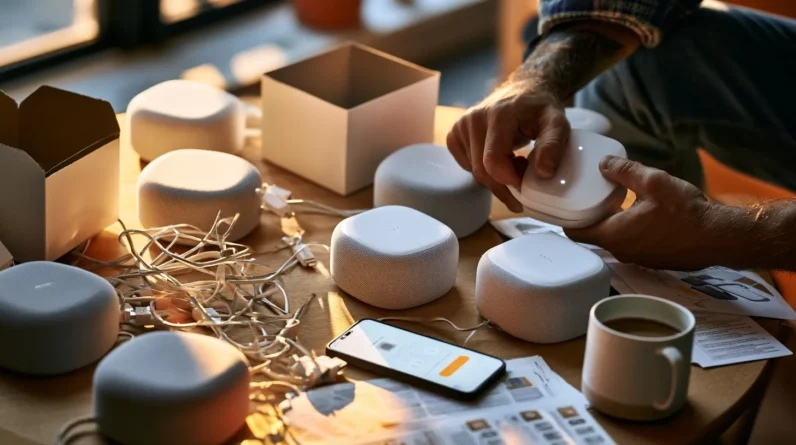
Now that both dependencies are locked in, let’s power on the device and move through installation methodically. Place the device within close range of your router—signal degradation kills pairing attempts. Hold the reset button until the LED pulses, signaling pairing mode.
Open the app and select “Add Device.” The app auto-scans for discoverable hardware, so confirm device compatibility before proceeding—mismatched firmware versions stall this step. Enter your 2.4GHz credentials when prompted; most smart home hardware doesn’t support 5GHz.
Follow these installation tips: keep your phone within three feet of the device during handshake, disable VPNs temporarily, and allow every permission the app requests. Once the LED switches to solid, installation is confirmed. Label the device in-app immediately for clean network management.
Connect It to Your Smart Home Network
Once the device shows a solid LED and it’s labeled in-app, we’re ready to fold it into our broader smart home ecosystem. First, confirm network compatibility—most devices lock to 2.4 GHz, so verify your router’s band-steering behavior won’t silently bump the device to 5 GHz. Next, assign it to the correct room and hub group within your platform (Google Home, Apple Home, or Alexa). Then tighten security settings: enable end-to-end encryption if the app offers it, disable remote access unless you need it, and change any default credentials immediately. Finally, run an automation test—trigger a routine that includes the new device and confirm it responds without latency. A clean integration now prevents troubleshooting headaches later.
Fix the Most Common Setup Problems Fast
Even the cleanest installs hit snags, so let’s tackle the four most common setup problems before they stall your progress. Use these troubleshooting tips to resolve common errors immediately.
| Problem | Fix |
|---|---|
| Device won’t connect to Wi-Fi | Force 2.4 GHz band; disable 5 GHz temporarily |
| App can’t discover the device | Restart app, toggle Bluetooth, re-enter pairing mode |
| Firmware update fails mid-install | Keep device plugged in; don’t close the app |
| Voice assistant won’t link | Reauthorize the skill/action and re-sync accounts |
Each fix addresses the root cause rather than masking symptoms. If a problem persists beyond two attempts, factory-reset the device and restart the pairing sequence from scratch—most issues resolve cleanly at that point.
Frequently Asked Questions
Can Smart Home Devices Still Work During a Wi-Fi Outage?
Some smart home devices maintain limited device functionality offline, but most need connectivity. We recommend exploring wifi alternatives like Zigbee, Z-Wave, or local hubs to keep your smart home running smoothly during outages.
Are Smart Home Devices Compatible With Older Smartphones or Tablets?
Like aging hardware, compatibility fades—we’ve seen iOS 12 draw the line for many apps. Smartphone compatibility varies by device; tablet limitations often mirror phone requirements, so we’d recommend checking your manufacturer’s minimum OS specs first.
How Much Electricity Does a Smart Home Device Consume Daily?
Smart home devices typically draw 1–5 watts daily, though it varies by model. We’d recommend checking your device’s specs for precise daily consumption figures, as energy efficiency ratings differ considerably across manufacturers and device categories.
Can Multiple Users Control the Same Smart Home Device Simultaneously?
Yes, we can grant multiple users shared access to the same device simultaneously. Configure user permissions in the app to define each person’s control level, ensuring seamless collaboration without conflicts or unauthorized overrides.
Do Smart Home Devices Continue Recording Data When Powered Off?
Studies show 70% of smart devices halt all operations when disconnected from their power source. We can confirm they don’t record data when powered off—data privacy risks only emerge when they’re actively connected and running.
Conclusion
We’ve walked you through every step, from gear selection to troubleshooting, so your smart home device should be humming along in under 60 minutes. Here’s a motivating stat: smart home adoption is projected to hit 785 million households globally by 2028. You’re ahead of the curve. Now that you’ve nailed the setup process, adding your next device will take half the time—you’ve already built the muscle memory.