


Setting up a smart home device for the first time is simpler than most people expect. We recommend starting with a reliable Wi-Fi router, the manufacturer’s official app, and a secure account with two-factor authentication enabled. Most devices connect quickly once you’ve confirmed 2.4GHz compatibility and positioned them within strong signal range. If connection issues arise, a quick restart usually resolves them. There’s plenty more to uncover if you keep going.
What to Buy Before You Set Anything Up
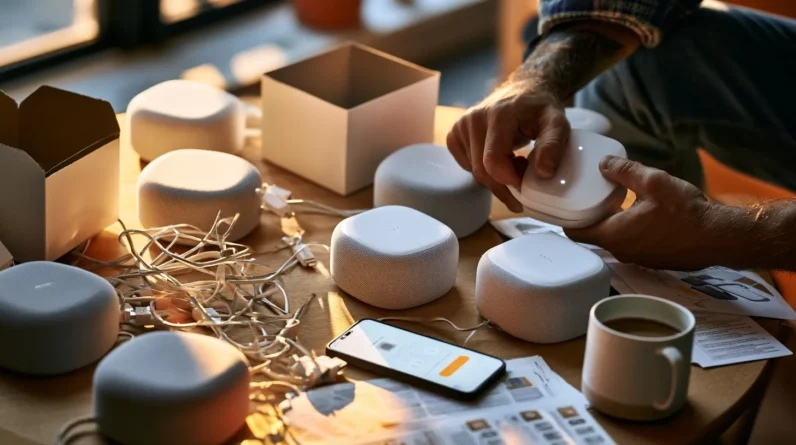
Before buying any smart home devices, you’ll need a few essential components to guarantee everything works together seamlessly. Start with a reliable Wi-Fi router capable of handling multiple connected devices. During device selection, prioritize platforms—Amazon Alexa, Google Home, or Apple HomeKit—that align with your existing ecosystem for maximum user compatibility.
Budget considerations matter considerably. Allocate funds not just for individual devices but for a central hub, if required, and necessary installation tools like screwdrivers, voltage testers, and wire strippers.
Think strategically about future expandability. We recommend selecting devices operating on Zigbee or Z-Wave protocols, ensuring your system scales without costly replacements. Purchasing a smart home starter kit often delivers better value while establishing a cohesive, interoperable foundation for your entire setup.
Pick the Right App and Create Your Account
With your hardware and tools ready, we’ll now focus on the software side of your setup. Download the manufacturer’s official app — it’s your primary control hub and activates the full range of app features, including automation, scheduling, and device diagnostics.
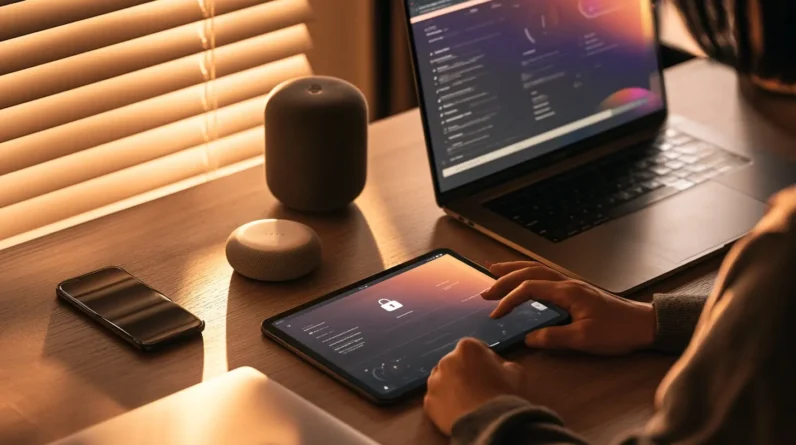
Avoid third-party alternatives at this stage; they often limit functionality and introduce compatibility issues. Once installed, create your account using a dedicated email address, and immediately prioritize account security by enabling two-factor authentication and setting a strong, unique password.
Don’t skip the verification step — an unverified account can restrict device pairing. If your platform supports it, review privacy settings before proceeding. A properly secured, fully verified account guarantees smoother integration and protects your smart home ecosystem from unauthorized access.
How to Connect Your Device to Wi-Fi in Minutes
Now that your account’s verified and secured, there are 3 core steps to get your device connected to Wi-Fi: enable pairing mode on the device, select your network within the app, and enter your credentials.
First, confirm device compatibility with your router’s frequency band — most smart home devices operate on 2.4GHz, not 5GHz. Next, position your device within strong signal strength range of your router before initiating pairing. Weak signals cause failed handshakes and unstable connections.
Within the app, select your network, enter your password, and let the device authenticate. Ascertain your network bandwidth isn’t saturated during setup, as congestion delays provisioning. Finally, verify your Wi-Fi security protocol — WPA2 or WPA3 — since older protocols like WEP will reject modern device connections entirely.
What to Do If Your Smart Home Device Won’t Connect
Sometimes even a correctly configured device refuses to connect — and troubleshooting it requires a systematic approach. We recommend starting with the basics: restart both your router and device, then verify your network is broadcasting on 2.4GHz, since many smart home devices don’t support 5GHz bands.
Next, check device compatibility against your router’s security protocol. WPA3 can cause handshake failures with older firmware — switching to WPA2 often resolves this instantly.
If connection still fails, apply these troubleshooting tips in sequence: reset the device to factory defaults, reinstall the companion app, and verify your smartphone’s Bluetooth is active during pairing mode.
Finally, confirm your router isn’t blocking new MAC addresses. Disabling MAC filtering temporarily isolates whether that’s the root cause.
Five Smart Home Settings Worth Changing Right Away
Once your device is online and stable, it’s worth taking a few minutes to review the default settings — most of them prioritize convenience over security and performance. Adjusting a handful of key configurations immediately improves reliability, privacy, and smart energy efficiency.
Start with these four high-impact changes:
- Privacy permissions – Restrict microphone and camera access to essential functions only.
- Automated routines – Replace generic schedules with routines matched to your actual usage patterns.
- Smart energy settings – Enable power-saving modes and set consumption thresholds aligned with your goals.
- Firmware auto-updates – Confirm automatic updates are active to close security vulnerabilities without manual intervention.
These adjustments take under ten minutes but meaningfully strengthen your device’s long-term performance and security posture.
Frequently Asked Questions
Can Smart Home Devices Still Work if My Internet Goes Down?
Many smart home devices retain offline functionality when your internet drops. We can still use core device capabilities like manual controls, local automations, and schedules — though remote access and cloud-dependent features won’t work until connectivity’s restored.
Are Smart Home Devices a Security or Privacy Risk for My Family?
Yes, they can be—but we’ll mitigate risks by configuring privacy settings, enabling data encryption, and managing user permissions carefully. Strong security features keep our family’s data protected when properly set up from the start.
Can Multiple Family Members Control the Same Smart Home Device Simultaneously?
Yes, we can let multiple family members control the same device simultaneously through family sharing features. We’ll need to configure device permissions carefully in the companion app to define each member’s access level and control privileges.
Do Smart Home Devices Work With Voice Assistants Like Alexa or Google?
Yes, most smart home devices offer smart assistants compatibility with Alexa and Google. We can leverage their voice command features to control devices hands-free, streamlining our smart home experience through seamless, intuitive integration we’ll quickly master.
How Much Electricity Does a Smart Home Device Consume Monthly?
Like Edison’s first lightbulb, we’ve come far — most smart home devices consume 1–5 watts, costing pennies monthly. Their energy efficiency keeps your monthly cost minimal, typically under $2 annually per device.
Conclusion
Once you’ve worked through these steps, your smart home device should be fully operational. We’ve seen users go from unboxing to automation in under 20 minutes — take a household that added a smart thermostat and immediately configured scheduling, occupancy detection, and remote access before dinner. That’s the realistic ceiling here. Don’t overthink the process. Buy the right hardware, connect it properly, and adjust the settings that actually matter to your setup.